Microsoft Endpoint Manager (Intune)
Manage and protect devices across your organization using Microsoft Intune — part of Microsoft Endpoint Manager. This section covers device enrollment, compliance policies, app protection, and platform-specific configurations.
Overview
| Section | Description |
|---|---|
| Initial Setup | Import baseline policies using Setup-Intune.ps1 |
| Device Enrollment Settings | Configure enrollment restrictions and Autopilot |
| Device Clean-up Rules | Auto-remove stale devices |
| Compliance Policies | Define compliant device requirements |
| App Protection (MAM) | Protect data on mobile without full MDM |
| Mobile Devices (MDM) | iOS and Android MDM + Conditional Access |
| Windows 10 — Azure AD Join | Cloud-native Windows device management |
| Windows 10 — Hybrid Join | Domain-joined + Azure AD co-existence |
Initial Setup
Download and run the provided PowerShell script to import all baseline Intune policies into your tenant.
Download Setup-Intune.ps1 — See the full Downloads page for all available scripts.
Steps
- Download
Setup-Intune.ps1using the link above -
Open PowerShell as Administrator and run:
Set-ExecutionPolicy -ExecutionPolicy RemoteSigned -Scope CurrentUser
.\Setup-Intune.ps1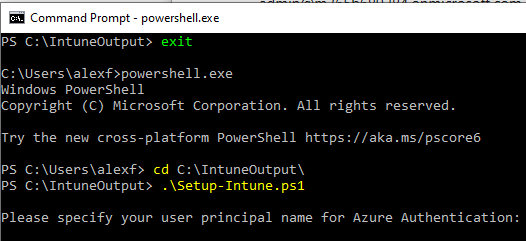
-
On first sign-in via PowerShell to Intune, you will be prompted to Consent on behalf of your organization — click Accept
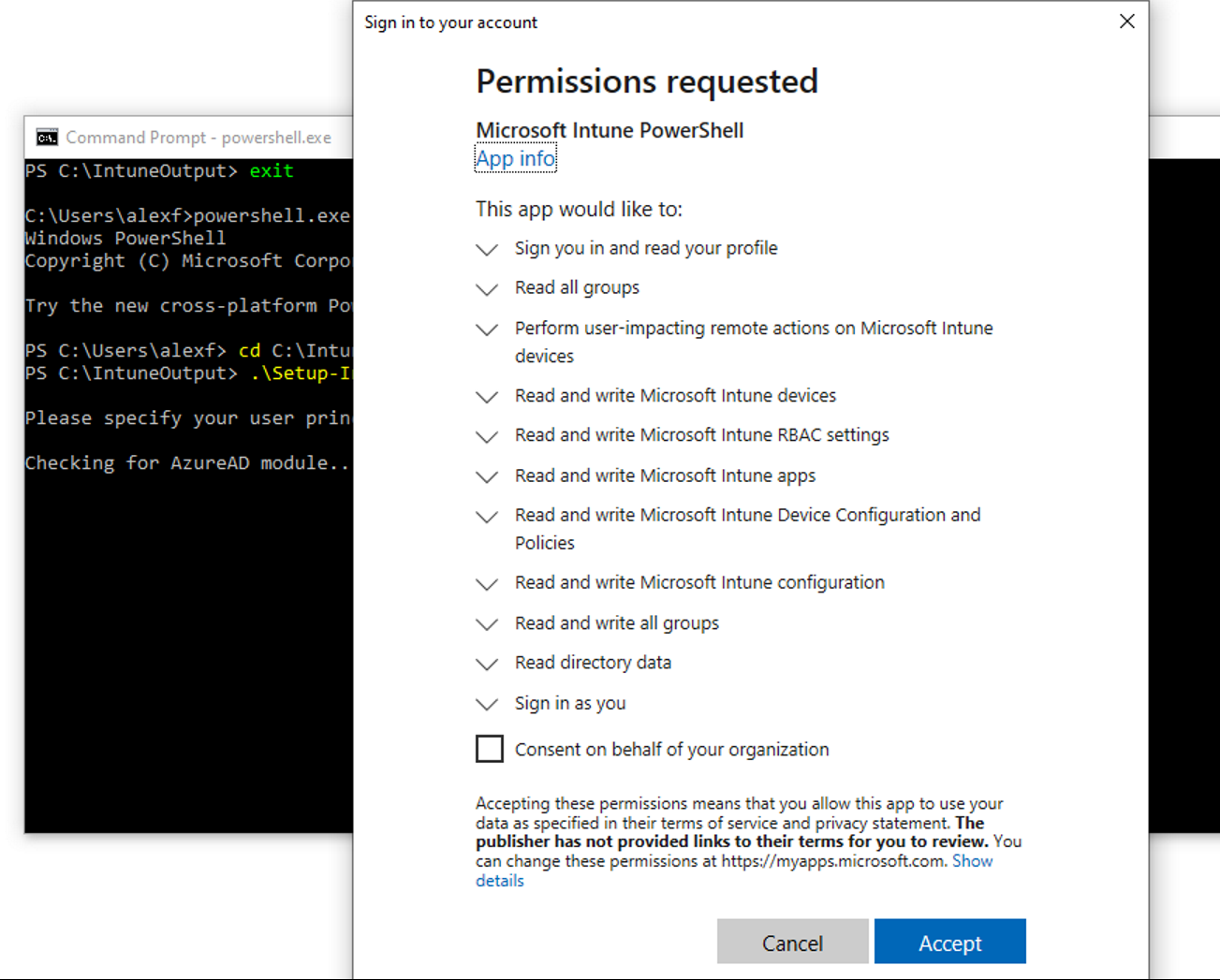
The consent step is required to grant the PowerShell module permission to manage Intune resources. This only needs to be done once per tenant.
Device Enrollment Settings
Configure how devices can enroll into Intune management.
Enrollment Restrictions
- Go to Intune admin center (intune.microsoft.com) > Devices > Enrollment > Enrollment restrictions
- Review the Default restriction policy and configure:
- Allowed platforms: Windows, iOS/iPadOS, Android, macOS
- Block personally owned devices: Configure based on your BYOD policy
- Device limit: Set maximum devices per user (recommended: 5–10)
Windows Autopilot
- Navigate to Devices > Windows > Windows enrollment > Devices
- Import device hardware IDs via CSV file (obtained from device vendor or using
Get-WindowsAutoPilotInfoscript) - Create an Autopilot deployment profile:
- Deployment mode: User-driven
- Join to Azure AD as: Azure AD joined
- User account type: Standard User (recommended)
- Assign the profile to a device group
Apple Device Enrollment (iOS/macOS)
- Navigate to Devices > iOS/iPadOS > iOS/iPadOS enrollment > Apple MDM Push certificate
- Follow the wizard to create and upload an Apple MDM Push Certificate
- For corporate-owned devices, configure Apple Automated Device Enrollment (ADE) via Apple Business Manager
Android Device Enrollment
- Navigate to Devices > Android > Android enrollment
- Connect to Managed Google Play for Android Enterprise enrollment
- Configure enrollment profiles for Android Enterprise — Fully managed or Work Profile as appropriate
Device Clean-up Rules
Automatically remove stale/inactive devices from Intune to keep your device inventory accurate.
Steps
- Navigate to Devices > Device clean-up rules
- Configure:
- Delete devices that haven’t checked in for this many days: 90 (recommended)
- Click Save
This rule removes devices from Intune management only. It does not delete the device from Azure AD automatically. Consider enabling the Azure AD device cleanup setting separately.
Compliance Policies
Define what makes a device “compliant” and configure actions for non-compliant devices.
Creating Compliance Policies
Windows 10/11 Compliance Policy
- Navigate to Devices > Compliance policies > Create policy
- Platform: Windows 10 and later
-
Recommended settings:
Device Health:
- Require BitLocker: Require
- Require Secure Boot: Require
- Require code integrity: Require
System Security:
- Require a password: Require
- Simple passwords: Block
- Password type: Alphanumeric
- Minimum password length: 8
- Firewall: Require
- Antivirus: Require
- Microsoft Defender Antimalware: Require
iOS/iPadOS Compliance Policy
- Create a compliance policy for iOS/iPadOS
- Recommended settings:
- Minimum OS version: Set to a recent supported version
- Jailbroken devices: Block
- Require a password: Require
- Minimum password length: 6
Android Compliance Policy
- Create a compliance policy for Android Enterprise
- Recommended settings:
- Rooted devices: Block
- Require a password: Require
- Minimum password length: 6
- Google Play Protect: Require
Actions for Noncompliance
For each compliance policy, configure actions:
| Action | Schedule |
|---|---|
| Mark device noncompliant | Immediately (0 days) |
| Send email to end user | 1 day |
| Retire the noncompliant device | 30 days |
App Protection (MAM)
Protect corporate data on mobile devices using App Protection Policies — works on personal (BYOD) devices without requiring full device enrollment.
Creating App Protection Policies
iOS App Protection Policy
- Navigate to Apps > App protection policies > Create policy > iOS/iPadOS
-
Configure:
Data protection:
- Backup org data to iTunes and iCloud: Block
- Send org data to other apps: Policy managed apps
- Receive data from other apps: Policy managed apps
- Save copies of org data: Block
Access requirements:
- PIN for access: Require
- PIN length: 6
Conditional launch:
- Max PIN attempts: 5 (action: Reset PIN)
- Offline grace period: 720 minutes (action: Block access)
- Jailbroken/rooted devices: (action: Block access)
- Assign to: All users (or a targeted group)
Android App Protection Policy
- Create a similar policy for Android
- Apply equivalent settings for data protection and access requirements
Mobile Devices (MDM)
Assign compliance policies and configure Conditional Access for enrolled iOS and Android devices.
Steps
- Assign compliance policies created above to the appropriate device groups
- Create Conditional Access policies that require compliant devices:
- Use the Require device to be marked as compliant grant control
- See Azure AD Configuration — Conditional Access
- Test with a pilot group before rolling out broadly
Ensure all targeted devices are enrolled and marked compliant BEFORE enabling any Conditional Access policy that requires device compliance. Otherwise, users will be blocked from accessing resources.
Windows 10 — Azure AD Join
For organizations deploying cloud-native Windows 10/11 devices (no on-premises domain join required).
Steps
- Import apps into Intune:
- Navigate to Apps > Windows > Add
- Add Microsoft 365 Apps and required line-of-business apps
- Assign configuration profiles imported via Setup-Intune.ps1:
- Navigate to Devices > Configuration profiles
- Assign each profile to the appropriate device groups
-
Assign compliance policy to the Azure AD Join device group
-
Verify Autopilot profile is assigned (see Device Enrollment Settings above)
- Test the end-to-end Autopilot flow:
- Power on a registered device
- The device should automatically enroll and apply all policies
Windows 10 — Hybrid Join
This configuration is only required if your organization has traditional domain-joined (on-premises Active Directory) computers and requires long-term co-existence with cloud management.
Prerequisites
- Active Directory Domain Services (AD DS) on-premises
- Azure AD Connect configured and syncing
- Network line of sight to domain controllers during OOBE
Steps
- Configure Hybrid Azure AD Join in Azure AD Connect:
- Run Azure AD Connect configuration wizard
- Select Configure device options > Configure Hybrid Azure AD join
- Select your operating system (Windows 10 current or downlevel)
- Verify devices are registered:
- Run
dsregcmd /statuson a domain-joined device - Confirm
AzureAdJoined: YESandDomainJoined: YES
- Run
- Enroll devices into Intune using Group Policy:
- Computer Configuration > Policies > Administrative Templates > Windows Components > MDM
- Enable Enable automatic MDM enrollment using default Azure AD credentials
-
Assign configuration profiles and compliance policies to the hybrid device group
- Verify co-management status in Intune admin center > Devices > Co-management